
Organize tasks and backlog
You need StoreKumpel Pro to use this feature.
How to use it
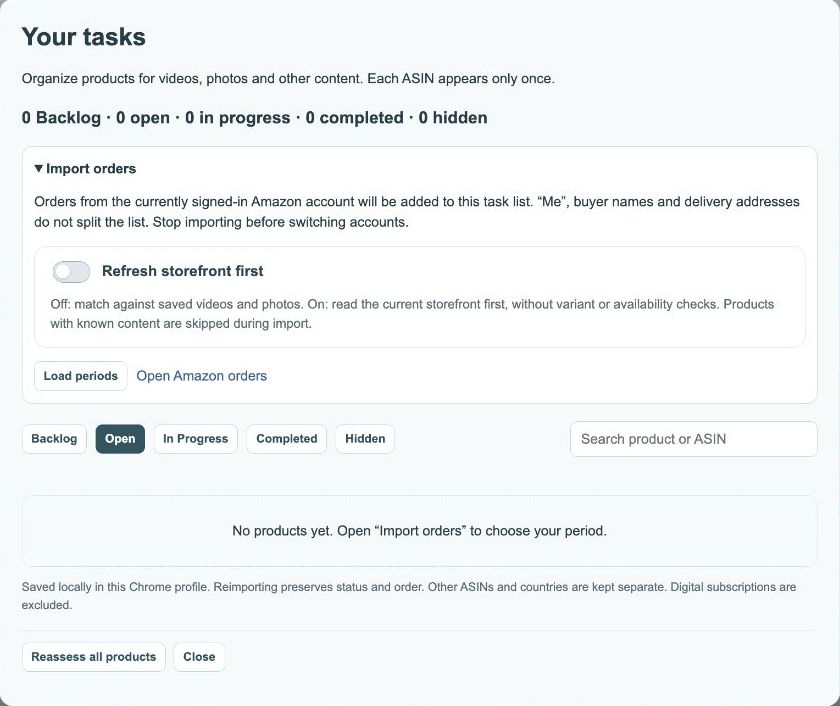
- Save interesting products using Backlog, then open Tasks.
- Use Backlog, Open, In Progress, Completed and Hidden to organize your work.
- Search for products or ASINs. Reorder the list by dragging or use Sort by score.
How do I start with a product?
Open an interesting product and add it to Backlog. In Tasks, find it by product name or ASIN. Decide whether to keep it as an idea, work on it or mark it completed. The tabs describe your work status, not automatically its publication status on Amazon.
 12
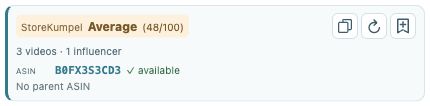
- Compare the score and displayed videos.
- Copy identifiers, refresh or add to Backlog.
How do I manage a long list?
Choose the relevant tab first, then narrow the list with search. Sort by score helps prioritize products; dragging lets you adjust their order. If a filtered list is empty, check the tab and search term before assuming a task has disappeared.
 12
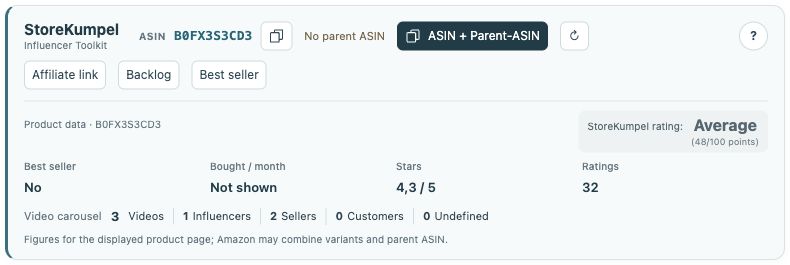
- Identifiers, copy buttons and additional tools.
- Product information and score at a glance.
How do I use ASIN selection?
Select ASINs lets you mark several tasks to copy together. Watch the selection count when changing searches or tabs. Copying neither tags products nor changes task status. Review the pasted list before using it in the editor.