
Compare orders with your content
You need StoreKumpel Pro to use this feature.
How to use it
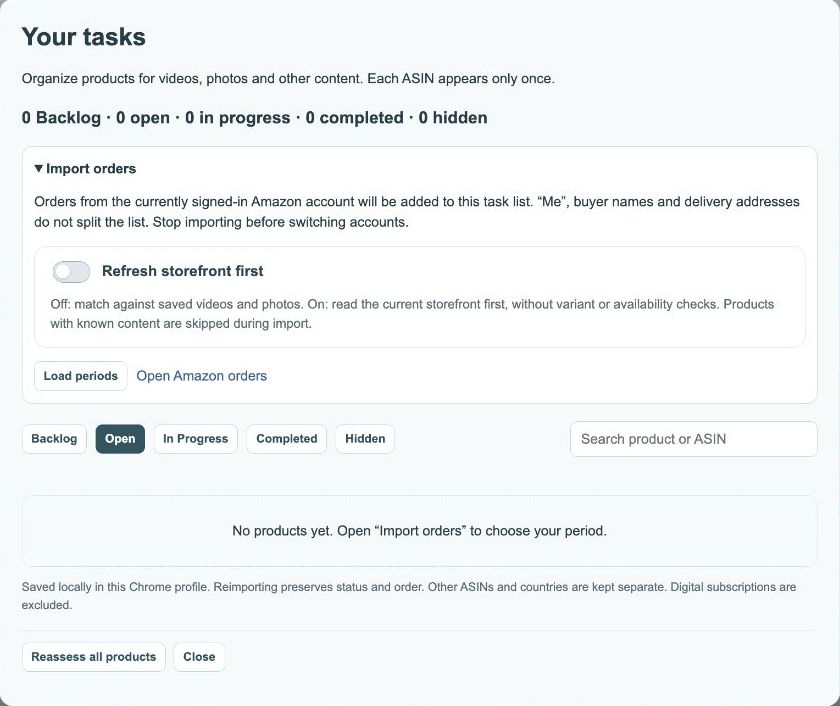
- Open Tasks and expand Import orders. Enable Refresh storefront first if needed.
- Click Load periods, choose the period you want and start importing. Open Amazon orders takes you to your order history.
- Review the comparison with your content and add suitable products to your planning.
What is the order comparison for?
It helps you consider ordered products when planning content. Check the Amazon marketplace and displayed products first. An order entry alone does not show whether you received, tested or already featured an item.
 12
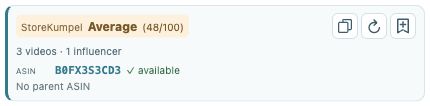
- Compare the score and displayed videos.
- Copy identifiers, refresh or add to Backlog.
How do I check an apparently missing post?
Compare the exact ASIN and variation. A video about a different size may use a different identifier. If unsure, open your content overview and inspect the post directly. A missing match is a reason to check, not proof that you have never created content.
 12
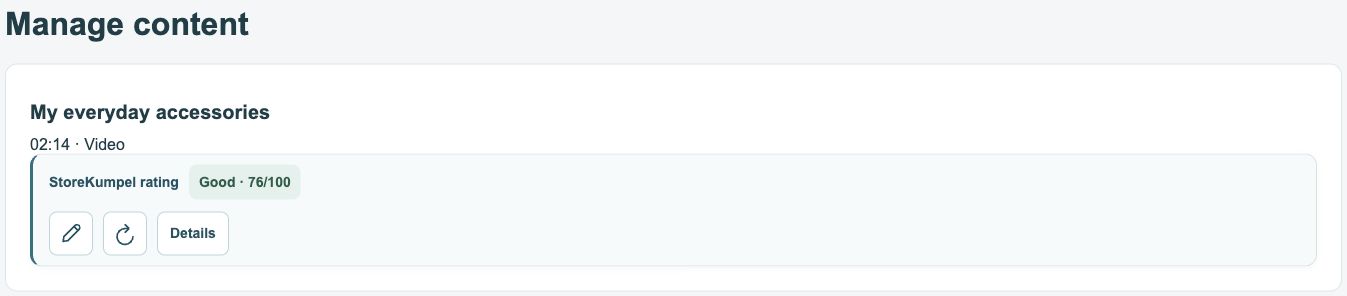
- Post score based on its products.
- Edit, refresh or open Details.
What should I do in Tasks next?
Classify the product according to your actual progress. Collect ideas in Backlog, plan filming and mark finished work accordingly. This organization does not publish anything on Amazon. Reviewing the product is usually the next useful step before preparing tags or content.