
When information is missing or something fails
How to use it
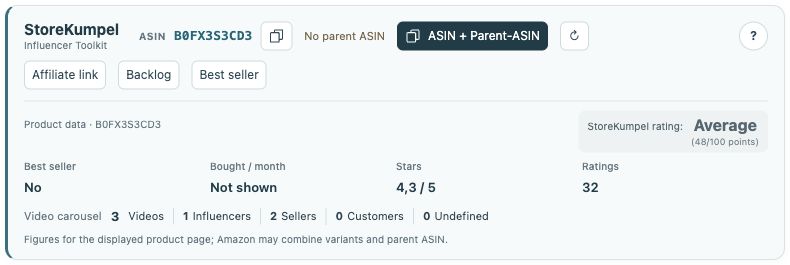
- Check that StoreKumpel is visible and you are signed in to the correct Amazon marketplace.
- Read the notice or tooltip on the affected button. Refresh an individual ASIN when its information is missing.
- After an extension update, reload the Amazon page. Stop active operations first.
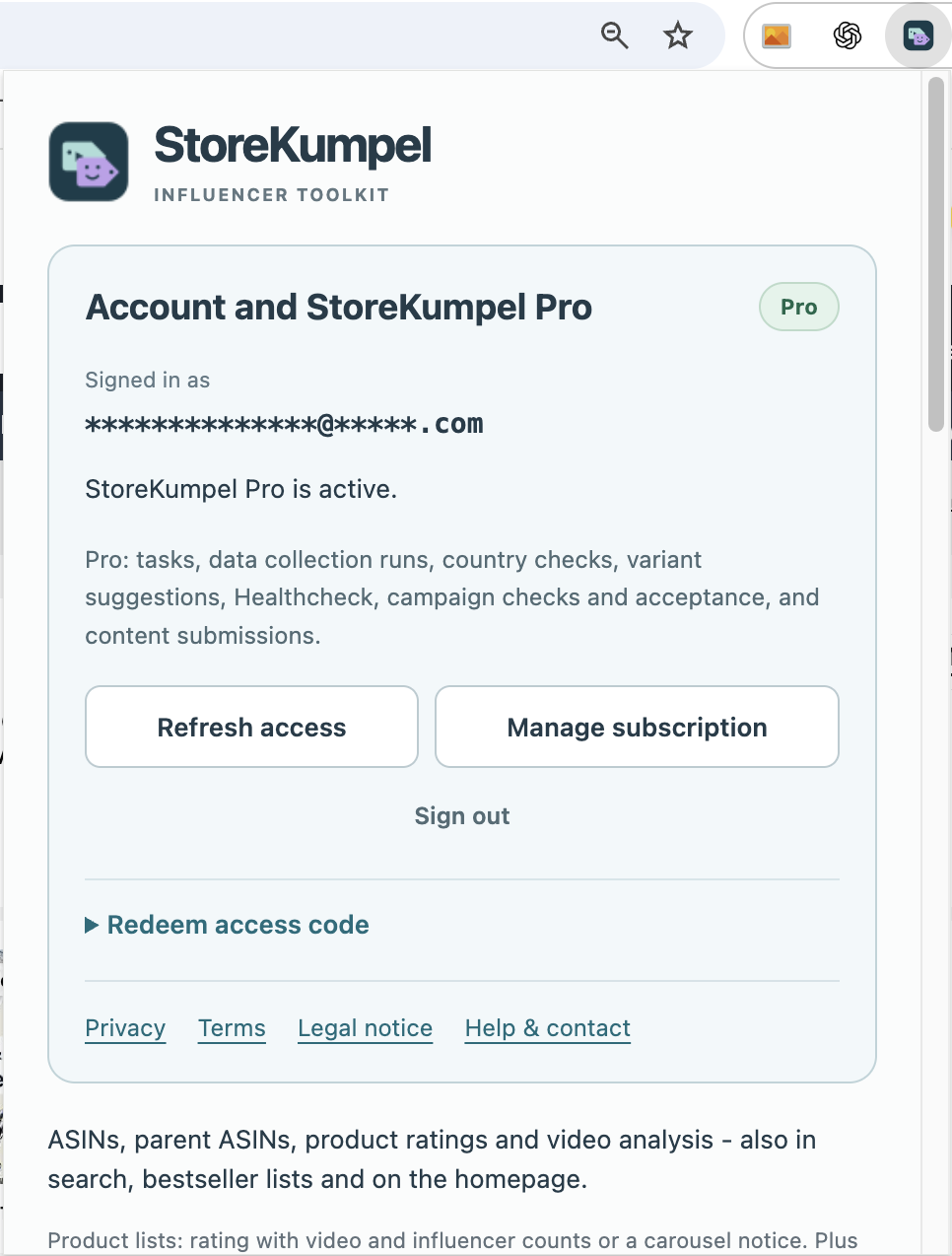
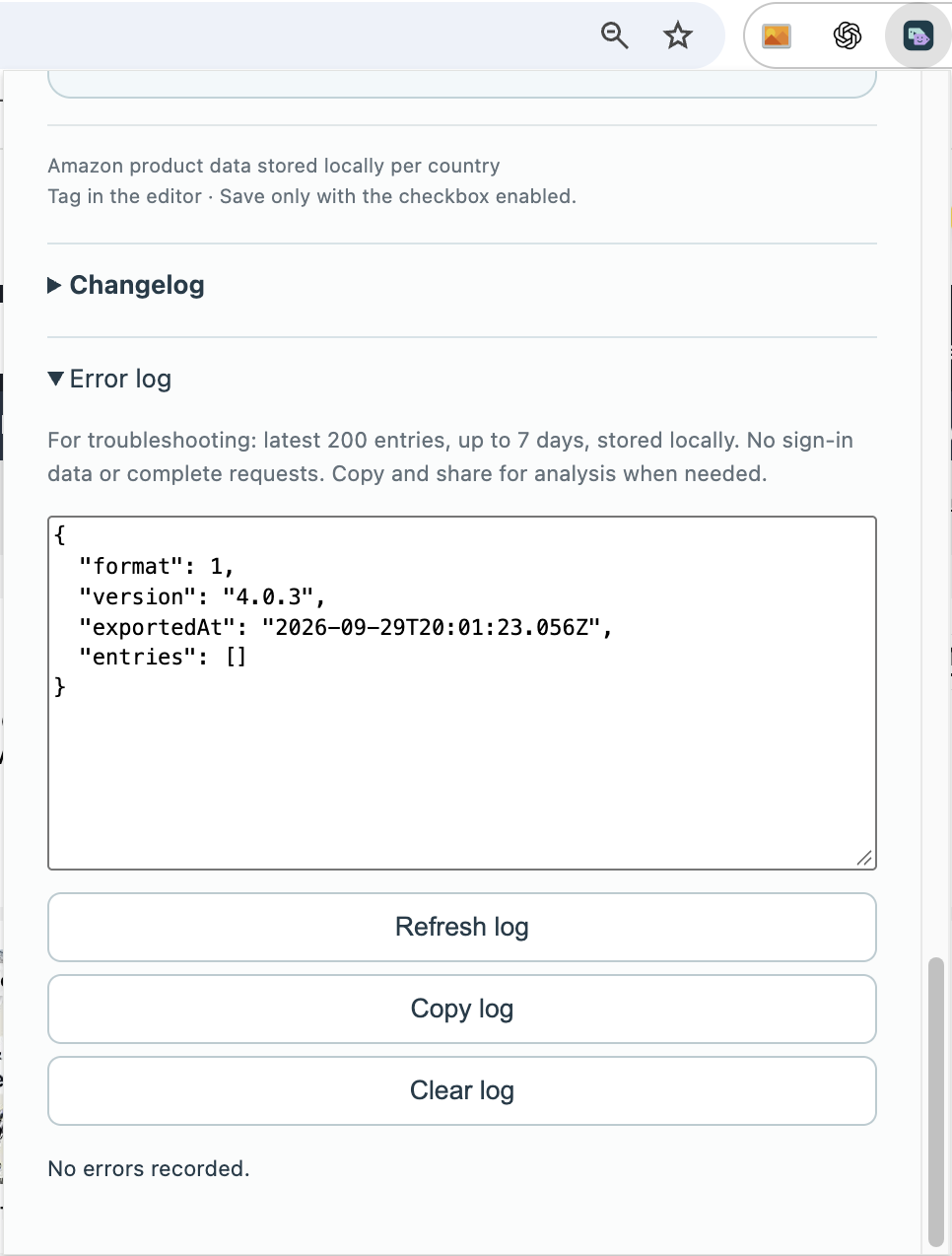
- If the issue persists, send support a brief description, screenshot and error log.
 12
- Check the affected ASIN and refresh if needed.
- Review missing information and notices in the product panel.
StoreKumpel does not appear at all
Check in Chrome that the extension is enabled and open a supported Amazon product page. Review display options. After an update, a page that was already open may still show the previous state; reload it after active operations have finished.
A value remains Not determined
Refresh only the affected ASIN first. Wait for feedback, then open the product page in the same marketplace if needed. Not determined means unresolved, not automatically zero or unavailable. If the difference is reproducible, note the ASIN, marketplace and check time for support.
A button is grey or an action ends with an error
Read its tooltip and the status notice. Processing may be active, a limit reached or access unconfirmed. For tagging and saving, first inspect the editor to see whether the change was applied despite the error. Check account status for Pro issues and Amazon sign-in for campaign issues.
 123
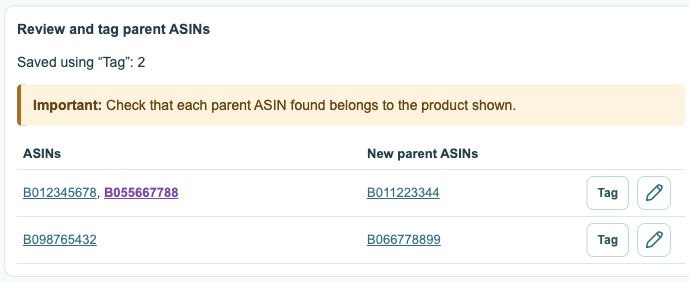
- Existing tags; recognized parents are purple.
- Review new parent suggestions first.
- Tag confirms and saves; the pencil opens the editor.
Service worker inactive in a local installation
Inactive alone does not prove an installation failure. Check whether Chrome reports a specific error and whether the extension works on an Amazon page. Note the exact message. Do not hastily remove a working installation if you want to keep its ID and settings.