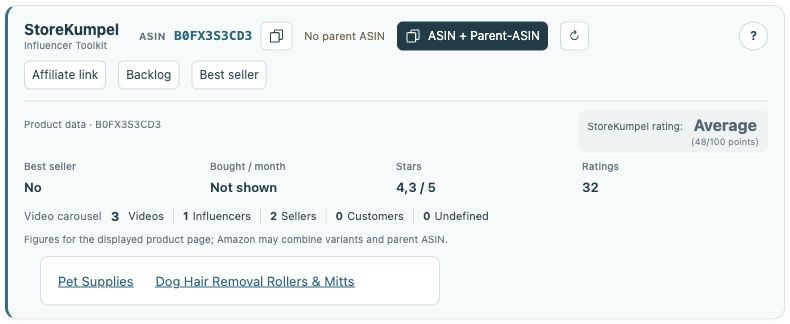
Bestseller button and category links
Open Amazon bestseller lists
Included in Free
How to use it
- Look for bestseller information in product data or the Bestseller button.
- Open the linked category to view Amazon’s bestseller list.
- Then review interesting products individually.
 12
- Best seller opens the category menu.
- Choose the relevant Amazon bestseller list.
Which category should I open?
A product can belong to several categories. Open the category selection through Bestseller and choose the one relevant to your research. A narrower subcategory may show different products from its parent list.
 12
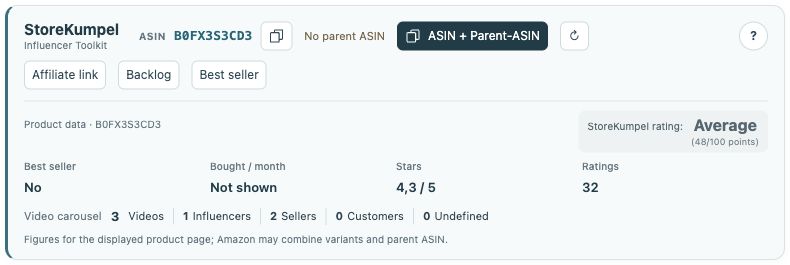
- Identifiers, copy buttons and additional tools.
- Product information and score at a glance.
Does the button mean the product is a bestseller?
Access to a bestseller list is not the same as a bestseller badge for the product. Read the specific rank and category information when available. The StoreKumpel score is separate guidance, not an Amazon ranking.
 12
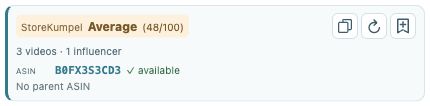
- Compare the score and displayed videos.
- Copy identifiers, refresh or add to Backlog.
How do I continue researching?
Open interesting products from the list individually. Compare the variation, availability, customer reviews and displayed videos. With Pro, collect suitable products in Backlog. The list is a starting point for ideas, not an automatic recommendation for every post.