
Check and accept campaigns
You need StoreKumpel Pro to use this feature.
How to use it
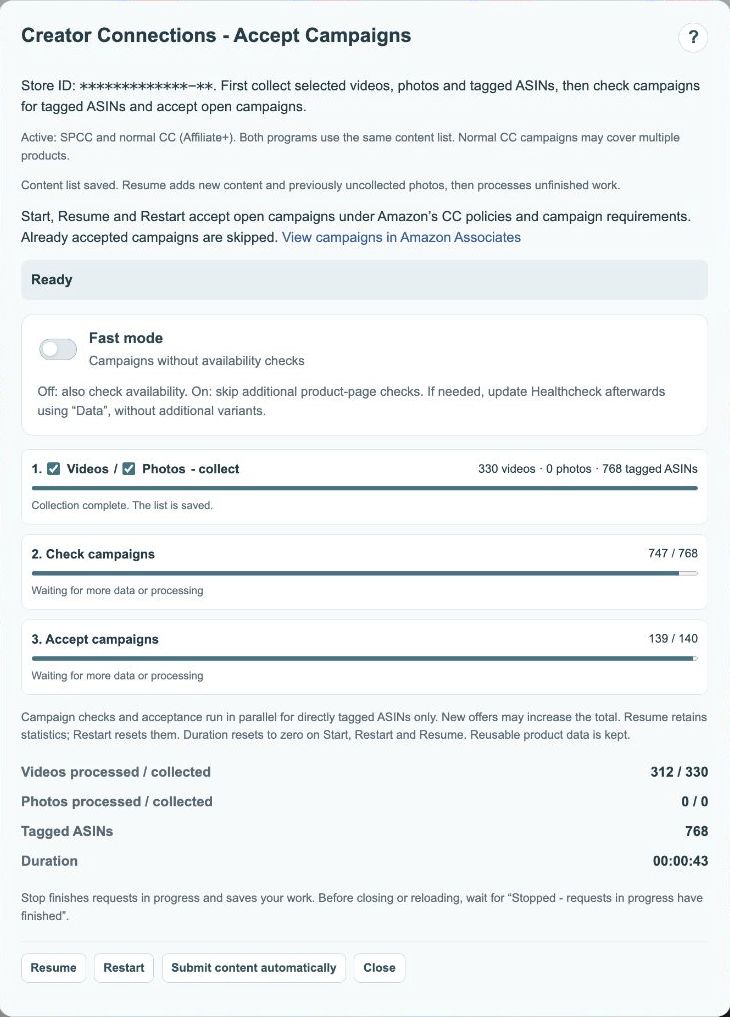
- Open Campaigns. Your Amazon account needs access to the relevant campaign program.
- Choose the content types. Turn off fast mode when you also want availability checks.
- Start the run and follow its progress. Matching open campaigns may be accepted during the run.
- Use Stop to interrupt the run. Choose Restart for a fresh run.
Why is access missing even though I have Pro?
Amazon independently decides which programs your account can access in each marketplace. Read the access notice and, if needed, open the linked Amazon partner program. After signing in there again, use Check again. A Pro subscription alone does not grant Amazon eligibility.
 12
- Refresh visible posts.
- Open Tasks, Schedule, Data and Campaigns.
How is this different from a data run?
A data run collects and checks your content and products. A campaign run looks for matching campaigns for linked ASINs and can accept open offers. Only start it when you want this workflow. Submitting existing video links is a separate action.
 123
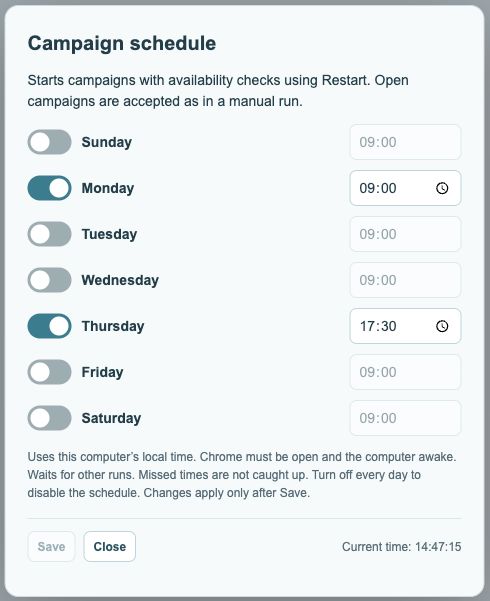
- Enable days and choose a time for each day.
- Save applies your changes.
- Current local time for reference.
When should I use fast mode?
With fast mode off, product availability is also checked. Review the selected content types and options before starting. Scheduled runs include availability checks. A faster workflow does not guarantee that a campaign will be found for every product.
What should I do after an interruption?
Read the completion or error notice first. If sign-in is missing, sign back in for the correct Amazon marketplace. If acceptance is uncertain, inspect the campaign status before repeating an action. Stop ends the active workflow; Resume continues from the existing progress.