
Schedule weekly campaign runs
You need StoreKumpel Pro to use this feature.
How to use it
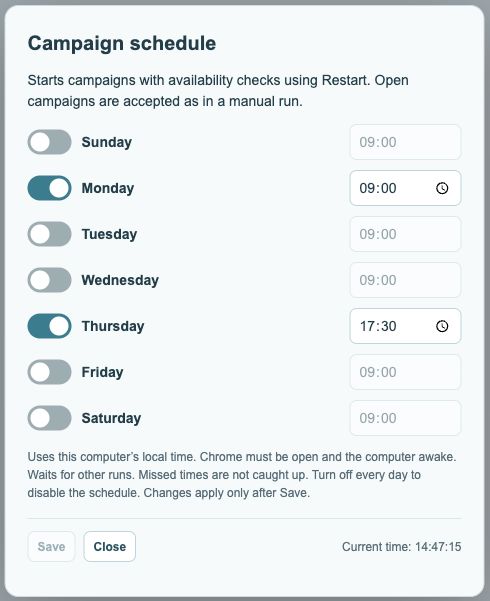
- Open the clock in the storefront toolbar. Enable the days you want and set the hour and minute to the right of each one.
- Click Save. Changes apply only then. Editing again enables Save. Close alone does not apply changes.
- Keep Chrome and your own storefront open and the computer awake. The run uses Restart with availability checks, so fast mode is off.
- To disable the schedule, turn off every day and click Save.
 123
- Enable days and choose a time for each day.
- Save applies your changes.
- Current local time for reference.
Waiting notice
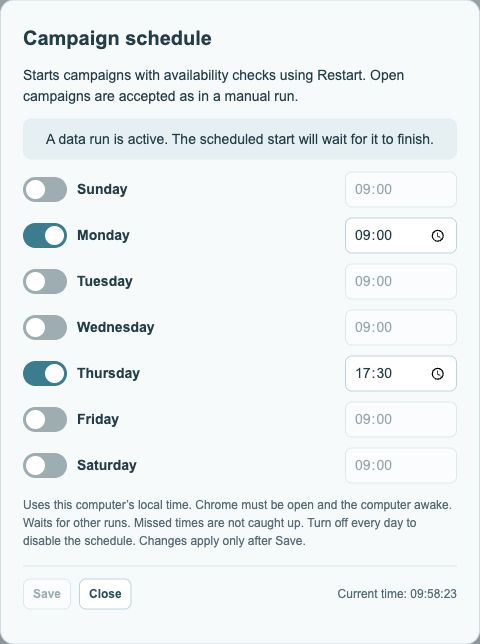
If another operation is running, the schedule waits for it to finish. A notice above the weekdays shows obstacles and disappears when the reason clears.
Missed time
A time triggered more than ten seconds late is not caught up. A notice shows the next scheduled time; any active operation is allowed to finish first.
Weekday order
DE and UK start with Monday; US and CA with Sunday. You can enable one time per weekday.
An example with two scheduled times
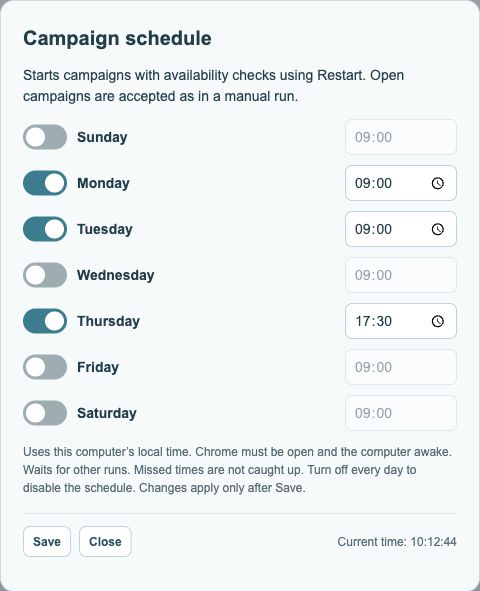
Enable Monday and Thursday. Set Monday to 09:00 and Thursday to 17:30, then click Save. Each day now has its own time. Disabled days do not trigger a run. The clock at the bottom right helps you compare your entries with the current local time.
 12
- Refresh visible posts.
- Open Tasks, Schedule, Data and Campaigns.
How do I change or disable the schedule?
Change a day or its time and save again. Editing re-enables Save. To turn scheduling off entirely, disable every day and save. Close discards changes you have not saved. After saving, leave the dialog open briefly and check for an error message.
 1
What happens if the computer is asleep or Chrome is closed?
The schedule does not wake your computer. If Chrome is closed or your computer is not ready, the run cannot start on time. A scheduled time detected more than ten seconds late is skipped. The schedule dialog tells you about the next time. Keep Chrome and the relevant storefront you own open for a scheduled run.
What needs to be ready before a scheduled run?
Pro and the relevant Amazon campaign access must be available. Another active operation may delay the start; the schedule notice explains the obstacle and disappears when it clears. Scheduling starts a campaign run that can accept matching open offers. Only set times at which you want this to happen.