StoreKumpel extension icon in Chrome
Options, language and displays
Included in Free
How to use it
- Open the extension and choose your preferred language.
- Use display controls to hide StoreKumpel or use the Free view while on Pro.
- Review the available sections for product checks, account, backup, changelog and error log.
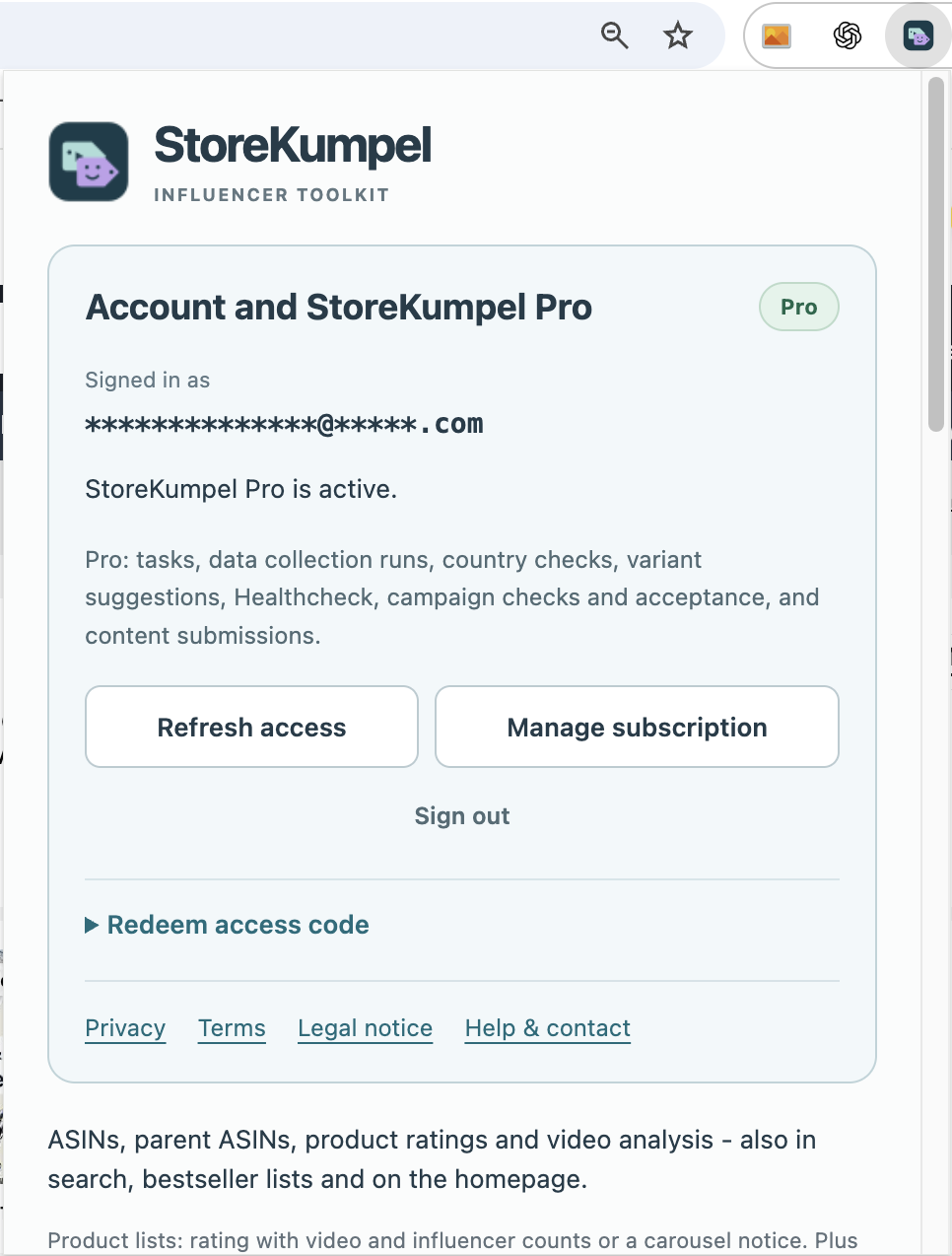
Where are the settings?
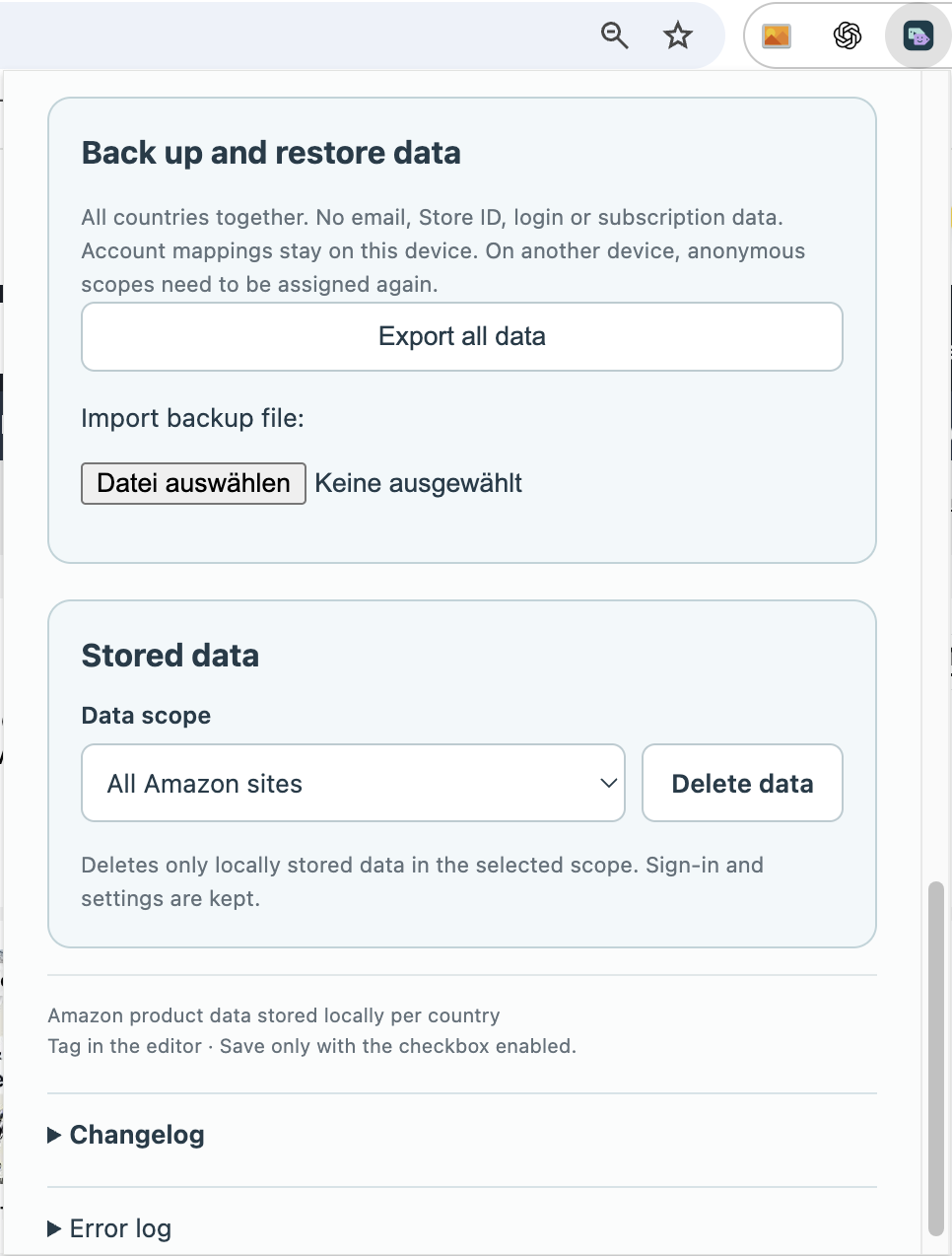
Open StoreKumpel from Chrome’s extension icon. If it is not pinned, use the puzzle-piece menu. Options contains language, display and account settings, plus backup and the error log. The illustrations show these areas separately to keep labels readable.
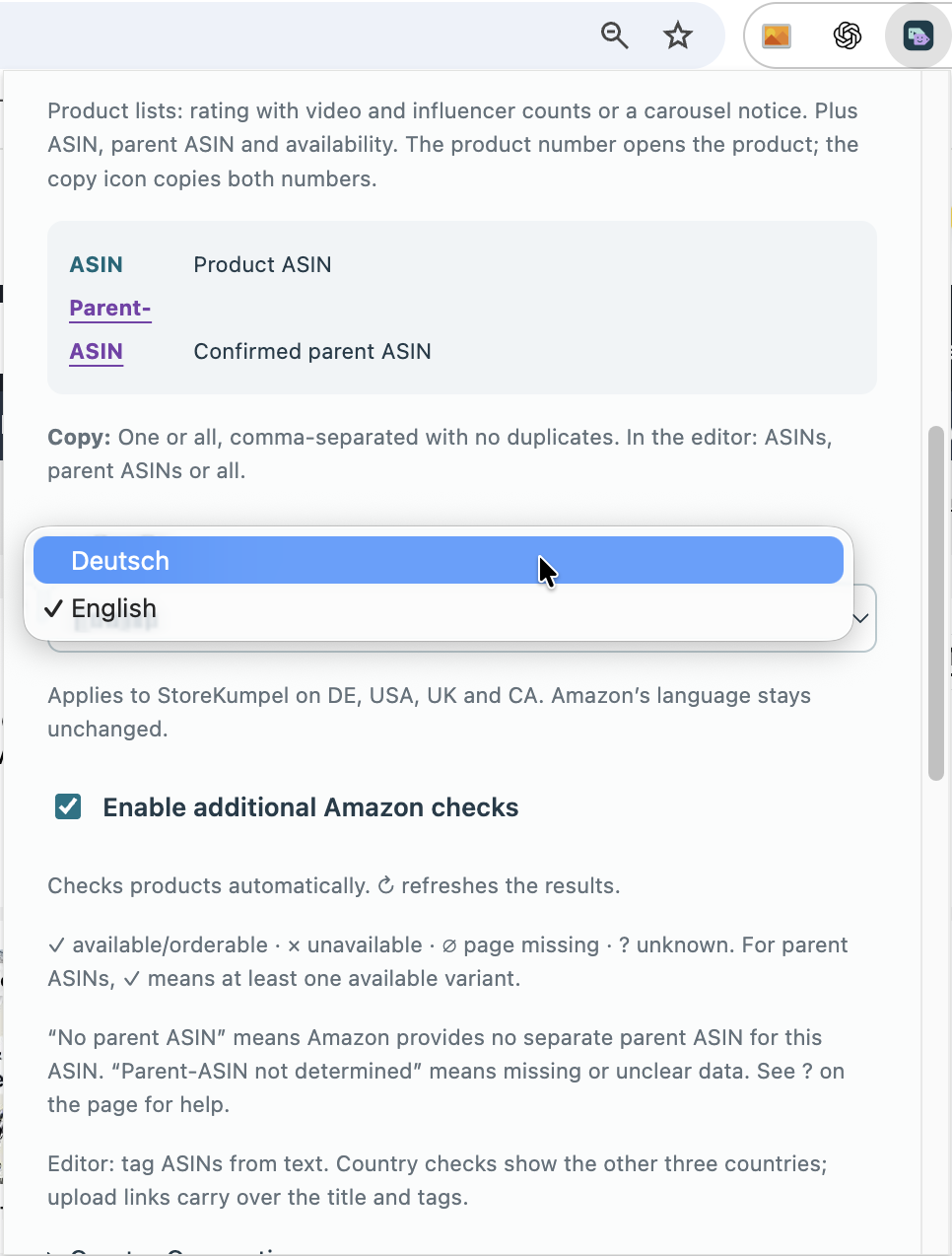
Why does Amazon’s language not change too?
The language setting applies to StoreKumpel. Amazon has separate language settings. You can therefore use English Amazon pages with German StoreKumpel notices, for example. When comparing help screenshots, check both language and marketplace.
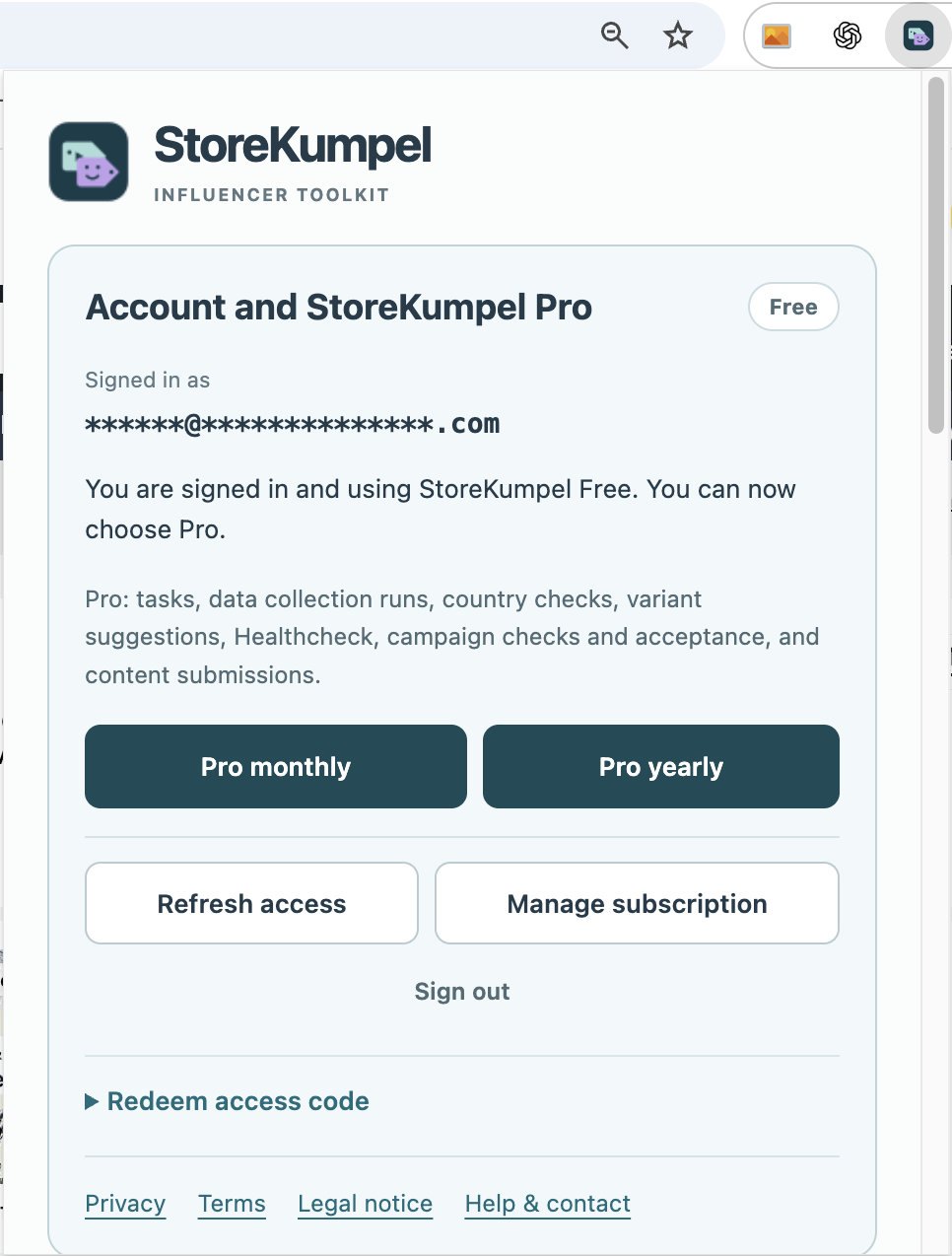
Which setting should I check if displays are missing?
First check that StoreKumpel and the relevant display area are enabled. For Pro tools, also check account status. A display setting does not grant Amazon campaign eligibility. After changing settings, test one familiar product page first.