
Get started with StoreKumpel
How to use it
- Open StoreKumpel using Chrome’s extension icon. If it is not visible, open the puzzle menu and pin StoreKumpel.
- Choose Deutsch or English. This changes StoreKumpel; Amazon may use a different language.
- Open an Amazon product page or your own storefront. Reload Amazon pages that were already open after an extension update.
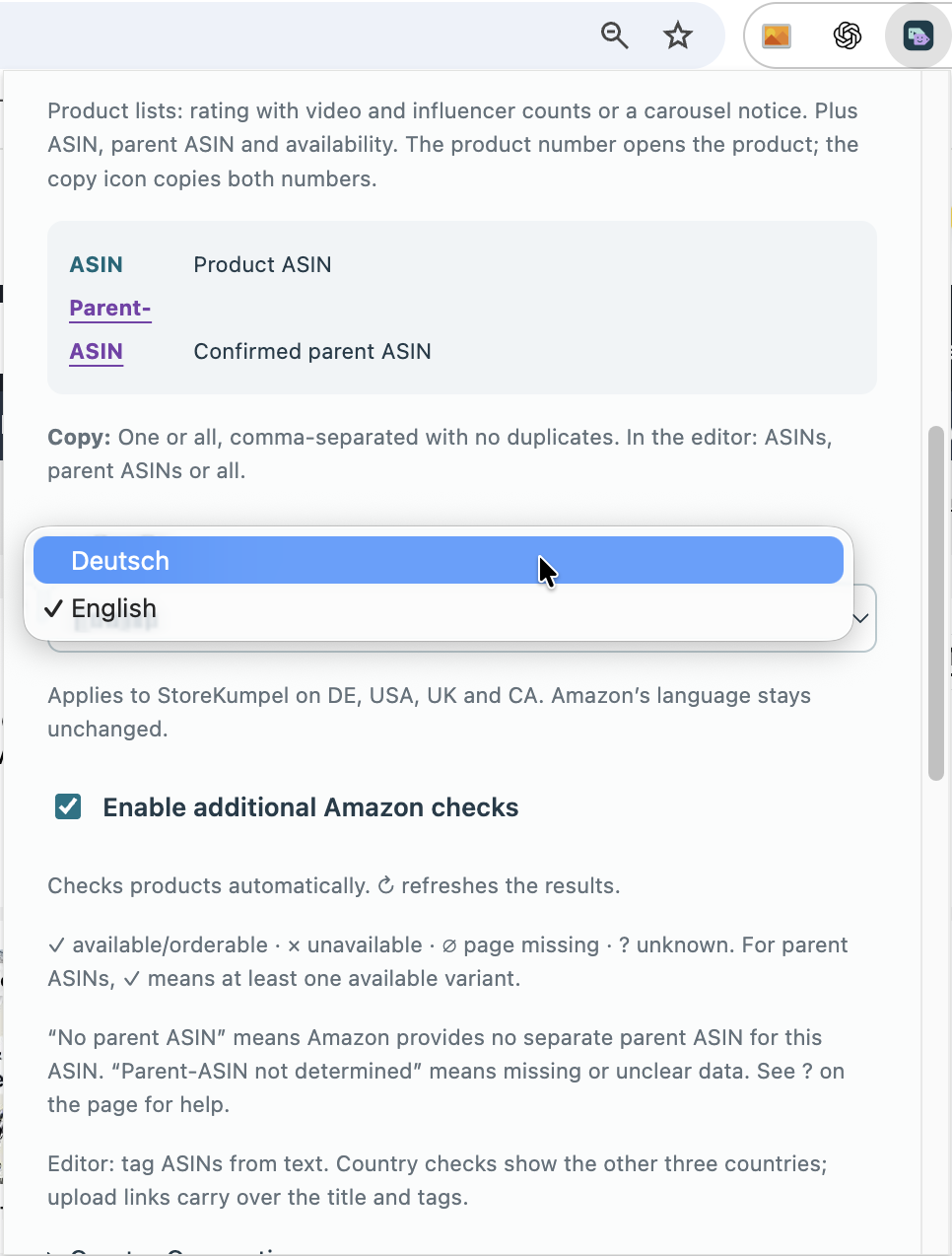
How do I check the setup?
Open Chrome and check under Extensions that StoreKumpel is enabled. Then open a supported Amazon product page. The StoreKumpel panel should appear after loading. A page opened before installation may need reloading. Stop any active run before doing so.
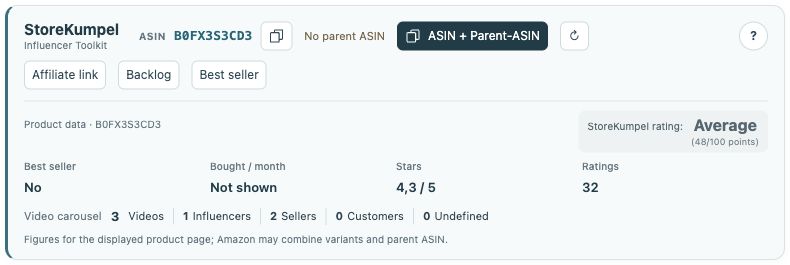 12
- Identifiers, copy buttons and additional tools.
- Product information and score at a glance.
Do I need two sign-ins?
Free does not require a StoreKumpel account. Your own storefront and the editor still require the appropriate Amazon sign-in. Pro is enabled separately through your StoreKumpel account. Signing in to Amazon therefore does not automatically sign you in to StoreKumpel Pro.
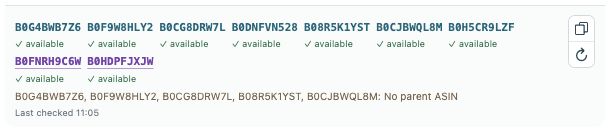 12
- Tagged ASINs and availability; parents are purple.
- Copy identifiers or check products again.
What should I try first?
Inspect a familiar product: its ASIN, parent information and product data. Then open your own storefront and compare a post with its tags. With Pro, try a data run and Healthcheck next. This order makes the displays easier to understand.