
Choose an image from your video as a thumbnail
Use StoreKumpel Pro to choose a suitable scene as the preview image for your video post. Available for new uploads and when editing published videos.
1. Open your video in the Amazon editor
New upload: Select your video file in Amazon as usual. StoreKumpel uses this local original file for image selection. Select one video at a time.
Existing post: Open your published video for editing from Manage content or the pencil icon on your storefront. StoreKumpel loads the best available public video version. Its resolution may be lower than your original file.
2. Open image selection
Below the video preview, click “Choose image from video”. The button appears above the country check. Amazon’s own “Edit thumbnail” option remains available.
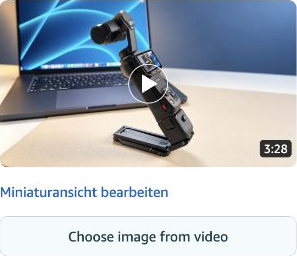
3. Find the right scene
Use the video controls to play, pause and move to the desired point. The arrows at the left and right edges let you fine-tune the selection. For local MP4/MOV files with readable frame timestamps, each step moves one frame; online videos use small time steps.
The resolution appears beside the close button. The loading bar shows how much has loaded. You do not need to wait for 100 percent: “Use image” becomes available when the selected image is ready.
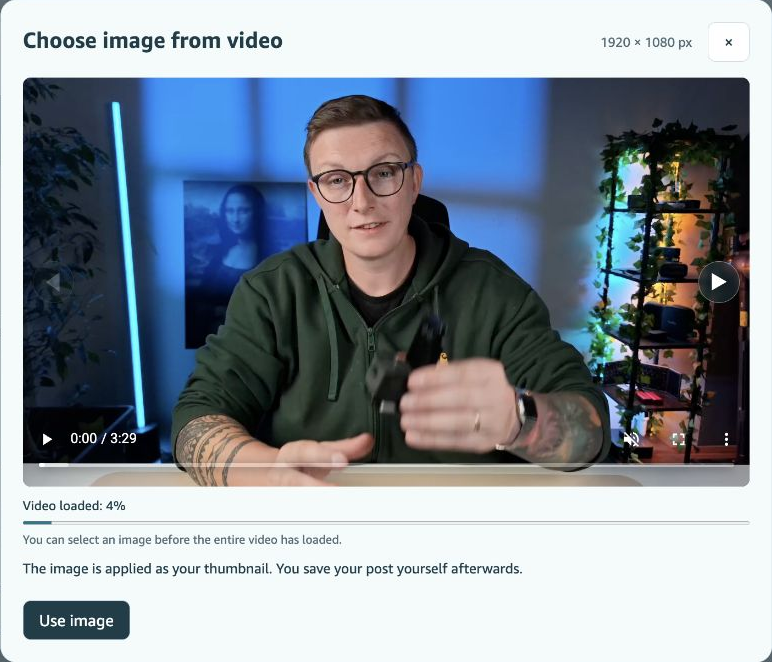
4. Apply the image and check your post
Click “Use image”. The selected image is passed to the Amazon editor as the thumbnail. Check the preview. To choose a different scene, open image selection again.
Close image selection with X to leave without applying an image. If you have already applied one, discard unwanted changes in the Amazon editor without saving the post.
The button is missing - what can I do?
- Check that StoreKumpel is up to date and your Pro access is active. Reload the Amazon editor after an extension update.
- For a new upload, select a single video file first. If you selected it before reloading the extension, select it again.
- This feature is for videos, not photos or collages.
The video will not load or Use image stays disabled
Allow the selected scene to load. Try another point in the video if necessary. If selection remains unavailable or a loading error appears, close image selection and open it again.
Unpublished posts or videos without an available public version may not support image selection when editing. Use Amazon’s own thumbnail selection or upload your own image if Amazon offers that option.
Will the image look better than my video?
No. Image quality depends on the selected video frame. Uploads use the local original; editing uses the public version offered by Amazon. This does not remove motion blur or improve low video resolution. Choose a sharp scene with little movement.