
Use the storefront toolbar
View progress, refresh, pause and collapse the toolbar.
Open Tasks, Data, Schedule and Campaigns.
How to use it
- Read the version and progress for detected content and checked ASINs on the left.
- The circular arrow refreshes. Pause stops automatic product checks; Play resumes them.
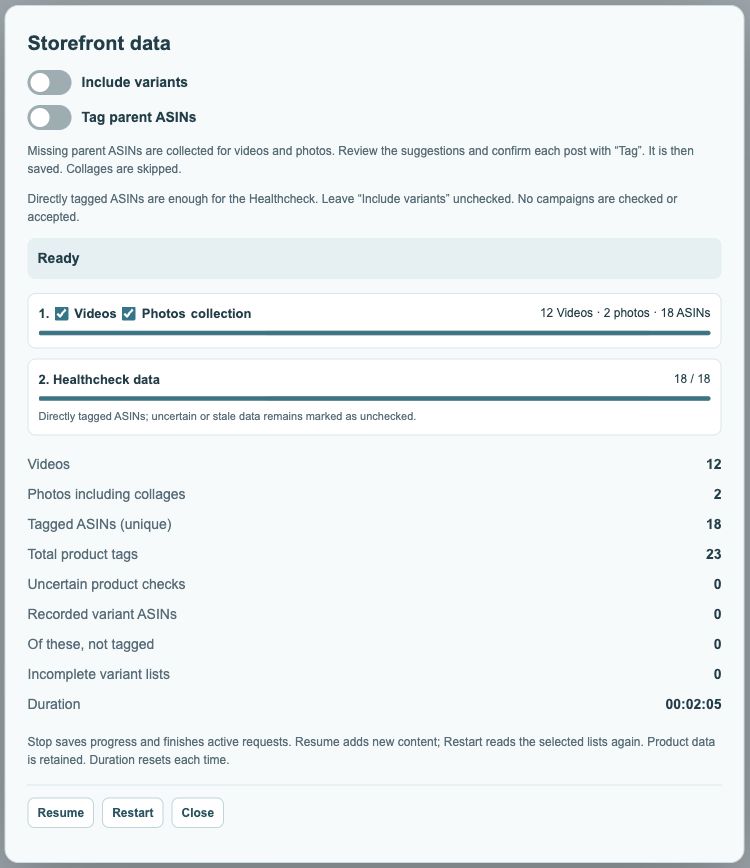
- Pro feature With Pro, open Tasks, the schedule using the clock, Data or Campaigns. The question mark opens help; Minus collapses the toolbar.
 12
- Refresh visible posts.
- Open Tasks, Schedule, Data and Campaigns.
What do the counts on the left mean?
The content count describes detected videos or photos; the ASIN line shows product-check progress. Several products may belong to one post, and the same ASIN can appear in several posts. The counts therefore do not need to match.
Pause, Stop or collapse?
Pause interrupts automatic product checks. Stop an explicitly started data or campaign run in its own dialog. Minus only collapses the toolbar. None of these controls should be confused with deleting your content.
 123
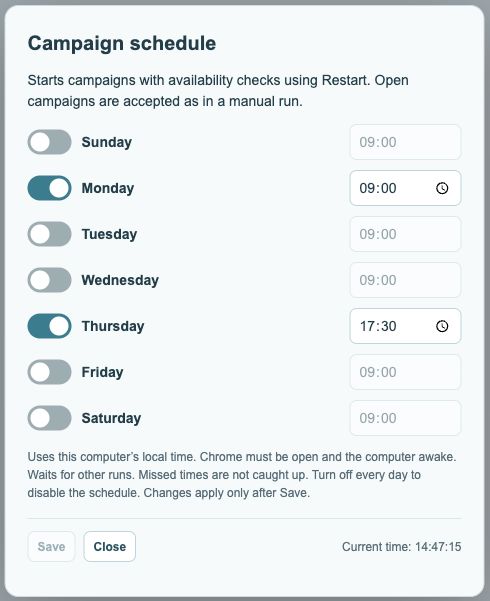
- Enable days and choose a time for each day.
- Save applies your changes.
- Current local time for reference.
Why are some buttons missing?
Some tools require Pro, and campaigns also depend on Amazon access. Check the options and any access notice. The toolbar can look different on another person’s storefront because editing tools are intended for content you own.