
Find problematic tags with Healthcheck
You need StoreKumpel Pro to use this feature.
How to use it
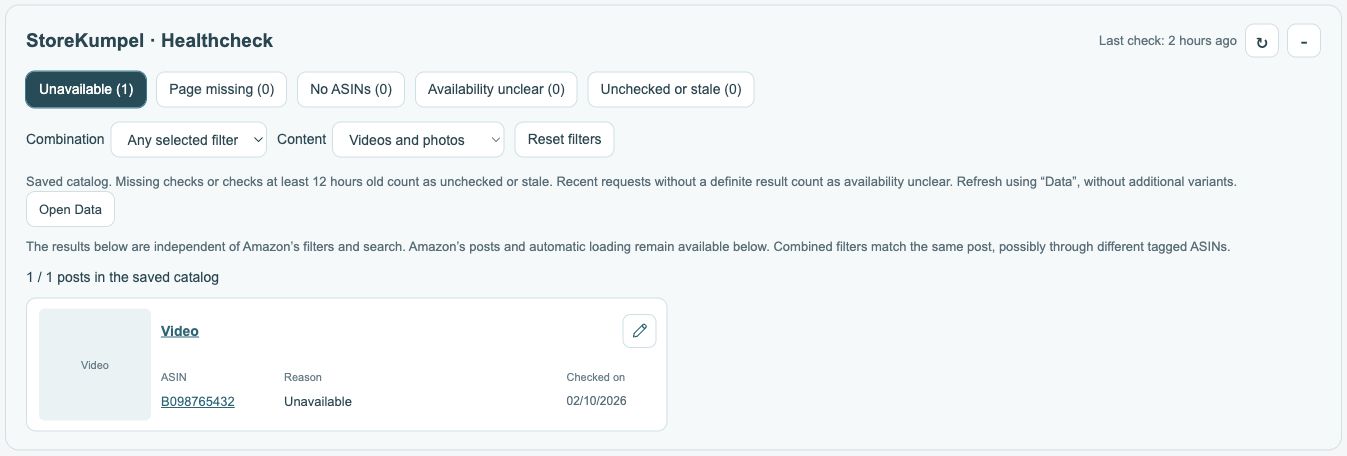
- Expand StoreKumpel · Healthcheck. The check time helps you judge how current the information is.
- Choose relevant filters such as Unavailable, Page missing, No ASINs, Availability unclear or Unchecked or stale.
- Choose Any selected filter or All selected filters and narrow the results to videos or photos if needed.
- Open a result with the pencil to review the post. Use Data for a new comprehensive check or refresh the individual ASIN.
 123
- Filter by the status you want.
- Choose content types and how filters combine.
- Check when the last run completed.
Combine filters
Any selected filter shows posts matching one of the chosen issues. All selected filters requires the same post to meet every selected condition.
Refresh the display
The Healthcheck arrow reloads the overview. Use Data or an ASIN’s refresh button for a new product check.
Read the count
The result count counts posts. Several affected ASINs may belong to the same post.
Where should I start if there are many results?
Start with one specific filter, such as Page missing, and work through one post at a time. Open the post or affected product. Check whether the association is still correct and whether Amazon now shows the product again. Only then decide whether to remove or replace a tag.
 12
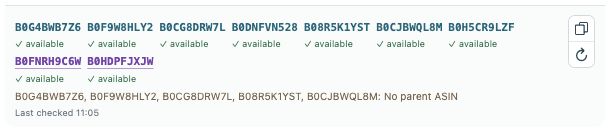
- Tagged ASINs and availability; parents are purple.
- Copy identifiers or check products again.
Why are post and ASIN counts different?
A post can contain several products. A video with three problematic tags is still one post in the results. The same ASIN may also occur in several videos. These counts describe different things and do not have to match.
 123
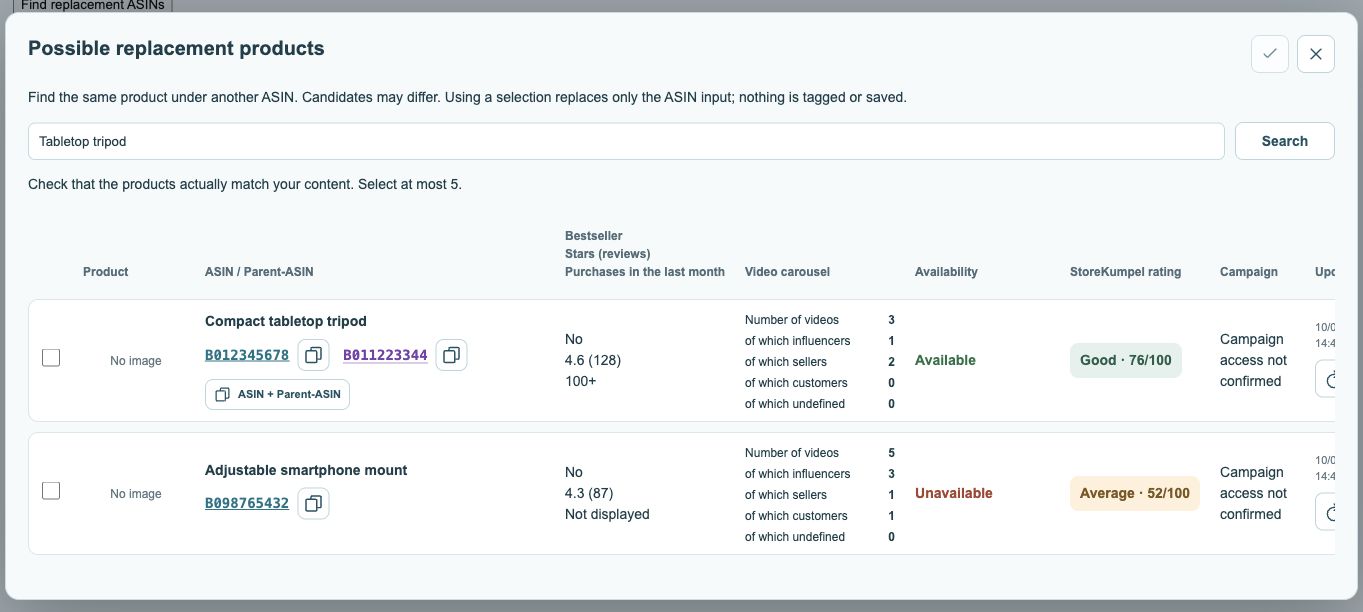
- Adjust search terms and search.
- Select suitable suggestions.
- Apply your selection; this does not save tags yet.
What does unchecked or stale mean?
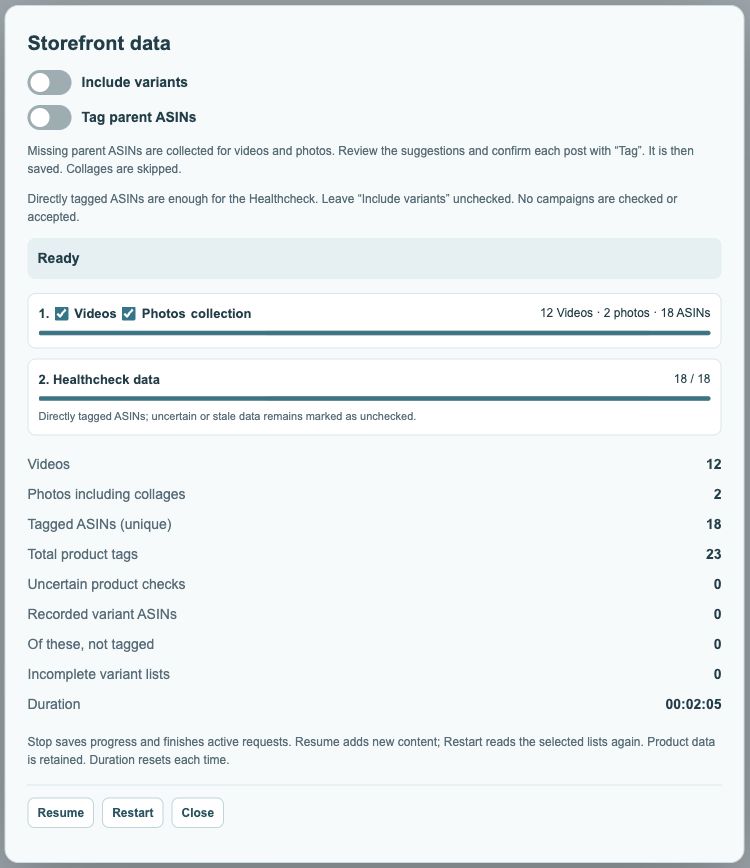
This selection lacks a sufficiently recent check. That does not automatically mean a product is unavailable. Use a data run for a broader review or refresh the affected ASIN individually. The overview timestamp does not guarantee that every product detail was successfully determined.
What should I do after editing?
Save intentional tag changes in Amazon’s editor, then refresh the relevant view and check the filter again. A post may still appear if another ASIN in it matches the selected issue. The editor’s replacement search helps you look for a suitable alternative.