
Understand your storefront displays
View tagged ASINs, availability and product scores.
Use Healthcheck, data runs, tasks and campaigns.
How to use it
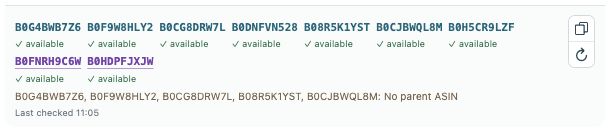
- Open your own storefront. Post cards show the StoreKumpel score and linked ASINs.
- Read the availability status below the ASINs. Purple identifiers are recognized parent ASINs. Click an identifier to open the product.
- Use the small refresh button to check a product again, the copy icon for the post link and the pencil to edit.
 12
- Tagged ASINs and availability; parents are purple.
- Copy identifiers or check products again.
Multiple products
Open the product information to compare the individual linked products in more detail.
Not determined
No reliable score is available yet. Check the status and refresh the affected ASIN.
Which identifiers belong to the post?
The ASIN list shows products actually tagged, including explicitly tagged parent ASINs. Merely identifying a parent relationship should not expand this list. Use the Details table or editor to inspect the additional relationships between products and parents.
 12
- Copy the post link.
- Open the post in the editor.
Why does the score say Not determined?
This means a usable score is not yet available. It does not mean zero points or automatically indicate an unavailable product. Refresh the affected ASIN and wait for the response. If it remains unresolved, open the product page in the same marketplace and inspect its information there.
 12
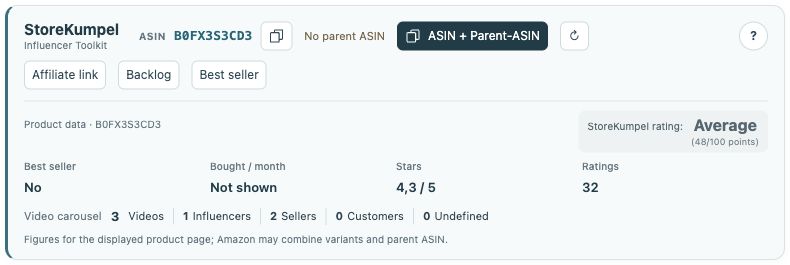
- Identifiers, copy buttons and additional tools.
- Product information and score at a glance.
What does each button do?
The copy icon on the post card copies the post link. Copy buttons in the ASIN area refer to identifiers instead. The pencil opens Amazon’s editor. Refresh checks information again; it does not save tag changes. You can therefore inspect a post before deciding to edit it.