
Review and tag missing parent ASINs
You need StoreKumpel Pro to use this feature.
How to use it
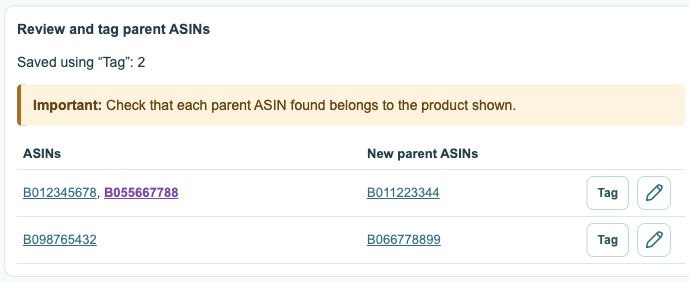
- Open Data and enable Tag parent ASINs. The table shows videos and photos for which an additional parent ASIN can be suggested.
- All existing tags appear on the left; recognized parent ASINs are purple. New suggestions appear on the right. Open the clickable identifiers and check that they really belong to the product shown.
- Confirm that individual post with Tag. StoreKumpel adds the approved parents and saves the post. Wait until processing finishes.
- On success, the row disappears and Saved using “Tag” increases. If there is a problem, read the tooltip and open the highlighted pencil to edit manually.
 123
- Existing tags; recognized parents are purple.
- Review new parent suggestions first.
- Tag confirms and saves; the pencil opens the editor.
During a data run
With the switch enabled, suggestions can appear while checks are still running. Tagging and editing are available once an active run has finished.
Empty table and Restart
An empty table means there are currently no suggestions to add. Restart resets the counter of posts completed using Tag.
What do the two columns contain?
The left column lists ASINs actually tagged in the post. A purple parent ASIN in this column is itself tagged. The right column contains proposed new parent ASINs. Identifying a parent relationship does not make that parent a tag. If in doubt, open the product link and check that the suggestion belongs to the products shown in your content.
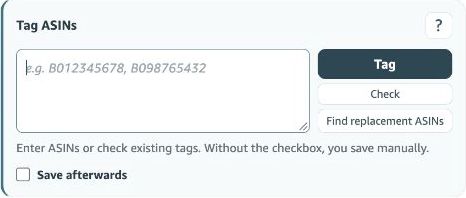
What happens when I click Tag?
The button adds the suggested parents to this one post and saves the change. It is not just a copy button. Once success is confirmed, the row disappears and the counter increases. If an error appears, inspect the actual tags in the editor first. Clicking the row again is not a reliable substitute for checking.
Why are the actions disabled?
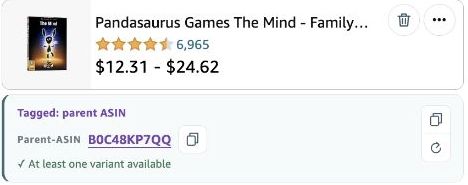
Tag and Edit are disabled during a run. Wait for it to finish. Tag also remains disabled if the existing tags plus the new parents would exceed ten. For example, nine existing tags and two new parents would make eleven. Decide in the editor which products belong in the post; StoreKumpel does not remove existing tags to make room.
How should I handle an unsuccessful addition?
Hover over the disabled Tag button to read the reason. Use the highlighted pencil to inspect the post manually. Reopening the table clears temporary error highlights. A restriction caused by the ten-tag limit remains. A button becoming available again does not mean a previous save has been undone.